Have you ever woken up to a blue screen of death or discovered that Windows is missing an entire folder of holiday photos? A sudden hard drive death is every user's nightmare. With old mechanical HDDs (Hard Disk Drives), there was an annoying clicking noise warning. Modern SSDs (Solid State Drives) are perfectly silent. They die without a sound.
Fortunately, they have a hidden medical record (S.M.A.R.T.) that you can read at any time. And that's exactly what the free and most widely used tool in the world is for: CrystalDiskInfo.
Why periodically check your drive?
The lifespan of every SSD drive is limited by the amount of writes (TBW limit - Total Bytes Written). Once you get closer to this limit, flash memory loses memory retention capability causing data corruption risks. Furthermore, cheap SSDs may drastically slow down right after heavy writes or suffer extreme temperatures under badly ventilated cases. Pre-checking your storage gives you plenty of time to purchase a new part before failure guarantees loss.
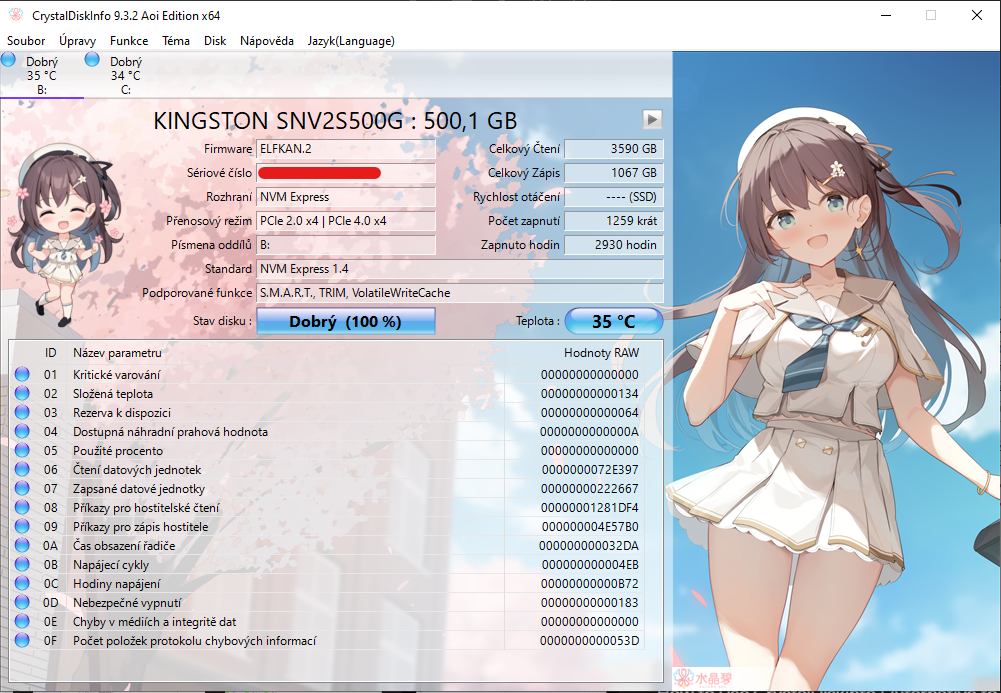
Step 1: Health diagnostics via CrystalDiskInfo
CrystalDiskInfo is a diagnostic program, not a speed test tool. It does not write anything to your storage, only reads internal logs that the SSD holds. You can download the tool free of charge.
What to look for?
- Health Status: The most crucial part presented top right big button. A blue colored button translates to "Good" along percentage bar. If you see Yellow color (Caution mark), begin data backup sequence right away. Red signals "Bad" requiring immediate part replacement.
- Temperature: Perfect NVMe SSD operational temps lie somewhere between 40°C representing idle range, stopping up 70°C at under sustained heavy loads. Pushing over 70°C, most drives enforce thermal performance throttling protecting the chip physically against cooking itself.
- Total Host Writes: Here you witness sum amounts terabytes recorded during the storage life span. Can be manually matched against SSD manufacturer claimed TBW (Total Bytes Written). Gives insights representing how far into "guaranteed end" we reached.
- Power On Count & Power On Hours: Awesome metric showing long operating durations the particular disk stayed spinning alive. A perfect audit option considering grabbing pre-used rigs off Craigslist ensuring usage matches descriptions.
Other detail values mapping below target more obscure engineering measurements so an ordinary PC user does without bothering understanding them. The magic CrystalDiskInfo gathers out these complex parameters gives you a single coloring summary on top.
Step 2: Speed benchmarking using CrystalDiskMark
While Info covers health, CrystalDiskMark allows testing how exactly disk functions under pressure proving package claimed factory speed labels truthfulness. Choppy gaming experiences or system stutter may be product of storage speed degradation. Thus this program populates memory using testing data while doing exact calculations of random/sequential speeds.
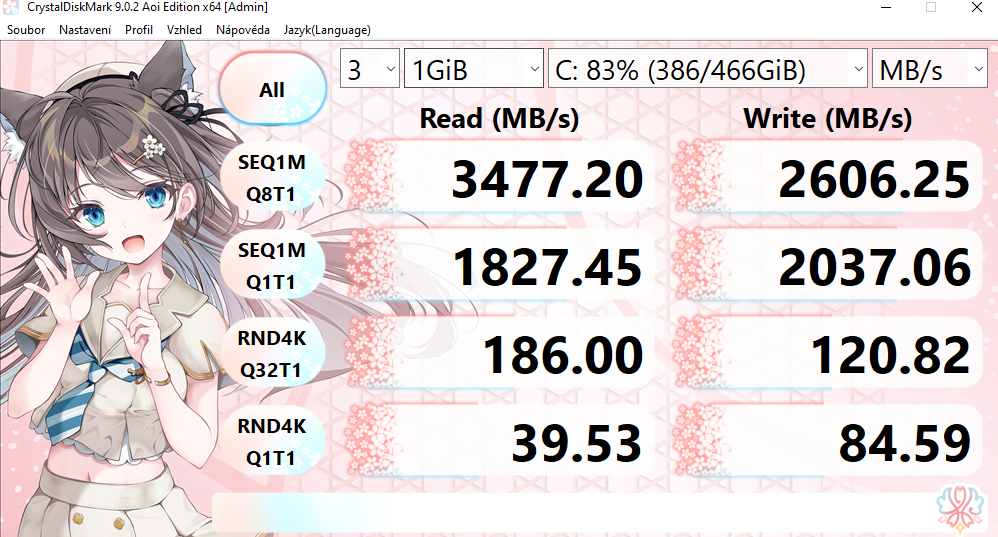
How does the test work and what do results signify?
Executing tests within the app is straightforward: selecting targets representing drive letters mapping (usually C:\, D:\ ), setting sample size targets representing standard (normally kept 1 GiB options), hitting main test buttons reading "All". Process loops several minutes completing results mapping 4 value rows:
- SEQ1M Q8T1 (Sequential Performance): Represents marketing "huge" raw numbers marking top speed NVMe generations. Shows capability of how fast drives handle singular colossal blocks size - like moving pure 4k video structures files.
- RND4K Q32T1 (Random 4K Performance): Actual system operational speed Windows relies significantly relies more using rows representing latter values measuring operations manipulating million minuscule segments - pieces of registry keys/game code bits known as Random 4K read segments. Top tier NVMe variants distinguish themselves against standard hardware within this very criteria.
Beware of Thermal Throttling during Testing!
CrystalDiskMark puts hard stress generating massive heat! Attempting full sequence tests sets working drives operating 100% duty cycles! Running raw NVMe structures without motherboards provided heatsinks means you need CrystalDiskInfo observing temps. Surpassing 75°C heavily degrades performance. Getting less than fifty percents manufacturer claimed results alongside cooking parts means you badly require purchasing proper custom heat-sinks immediately preventing structural deterioration.
Buy on AmazonSummary: Diagnostic run rhythm
Absolutely no need to checking SMART parameters every day. Performing inspections occasionally quarterly keeps peace within. Quickly launch the Info application for five seconds checking up blue signs returning 100% metrics - close right away! Buying newer rigs requests once executing Mark benchmark validating hardware part factory performance qualities avoiding potentially faulty production chains. Save up your digital goods before failures hit.